Changing a background: color or media
2 min read
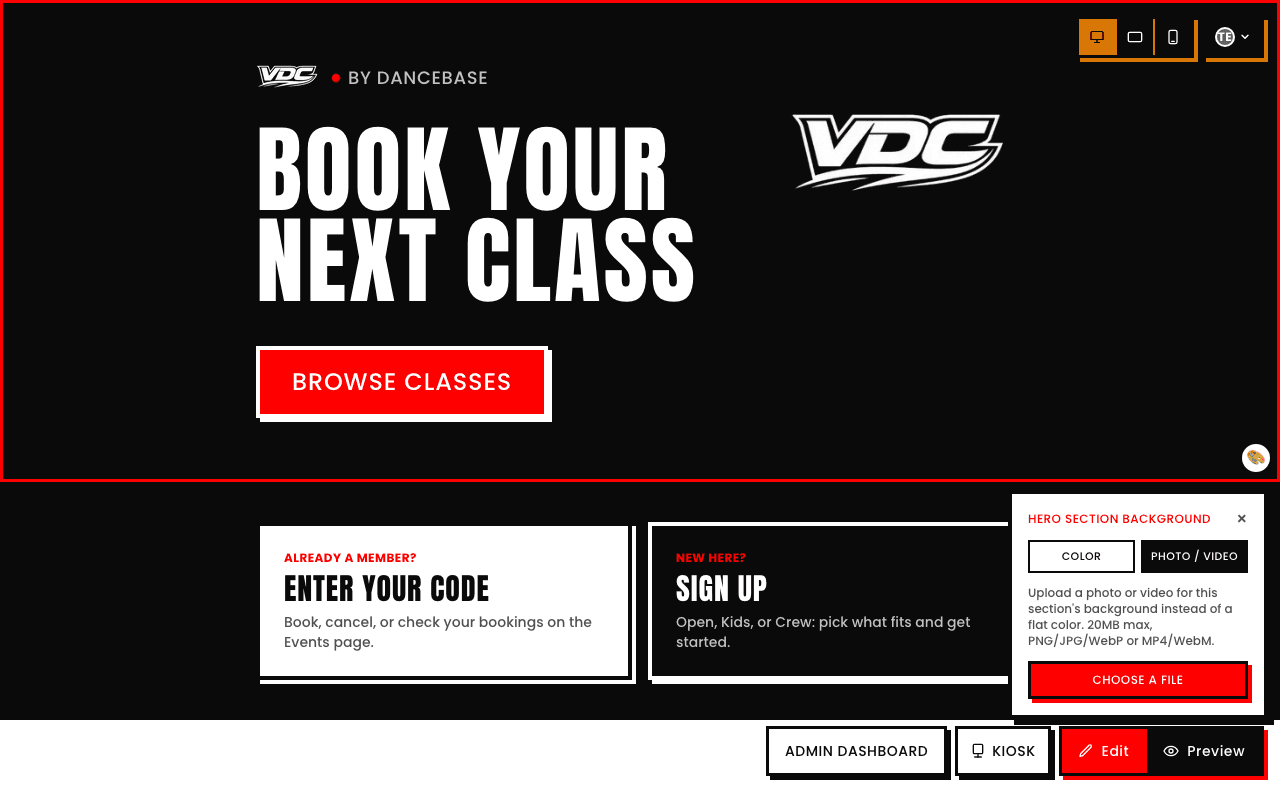
Clicking on an editable section's background (not the text inside it) opens a panel labelled with exactly which section you're editing, e.g. "Hero Section Background," with two tabs.
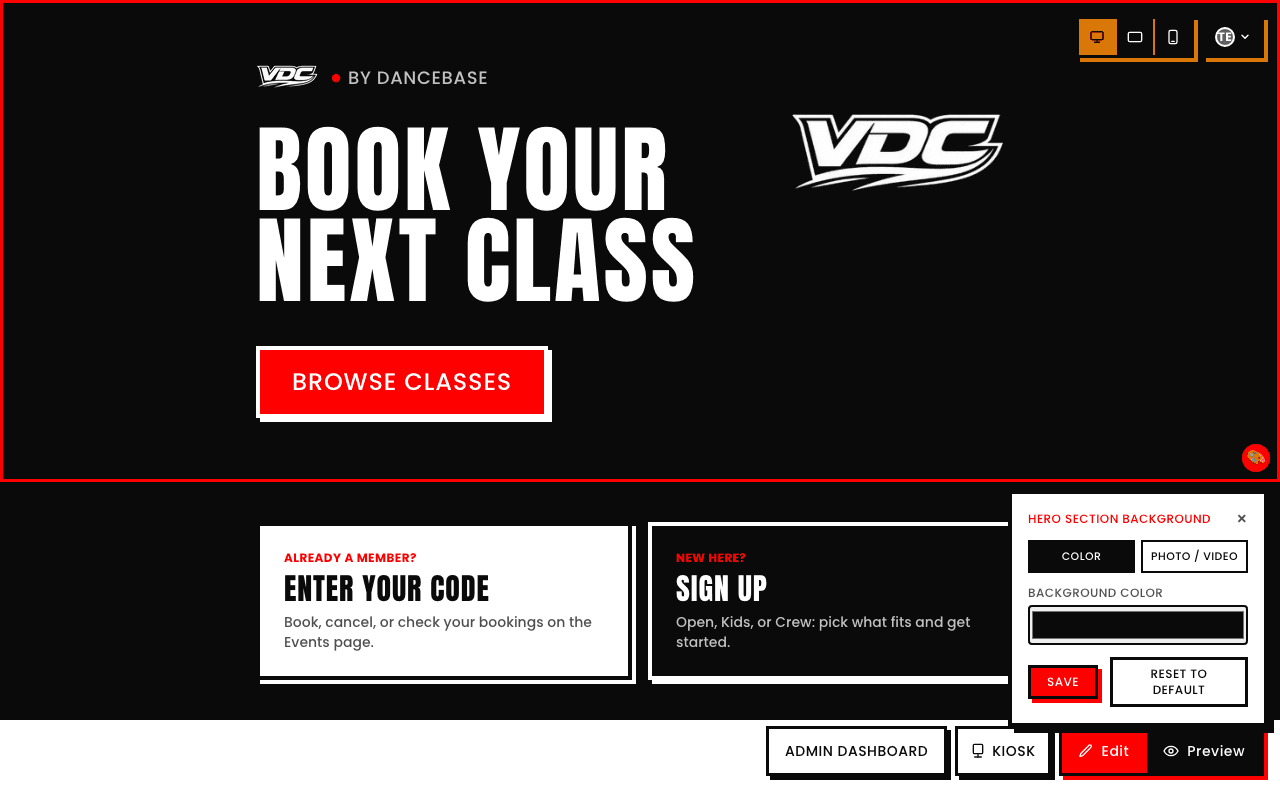
- Color. Pick a flat background color for that section, via the same real color picker used for text.
- Photo / Video. Upload your own background image or video, replacing the flat color entirely. The real limits: 20MB max, PNG/JPG/WebP or MP4/WebM.
Switching tabs doesn't delete the other option
Moving from Color to Photo/Video (or back) doesn't erase whichever one you're not currently using, only whichever tab is active when you hit Save is what actually shows on the live page.