Repositioning your logo
2 min read
Your logo works a little differently from plain text: hovering over it in Edit Mode shows a resize/drag handle directly on the image itself, and a separate small pencil icon opens its own panel.
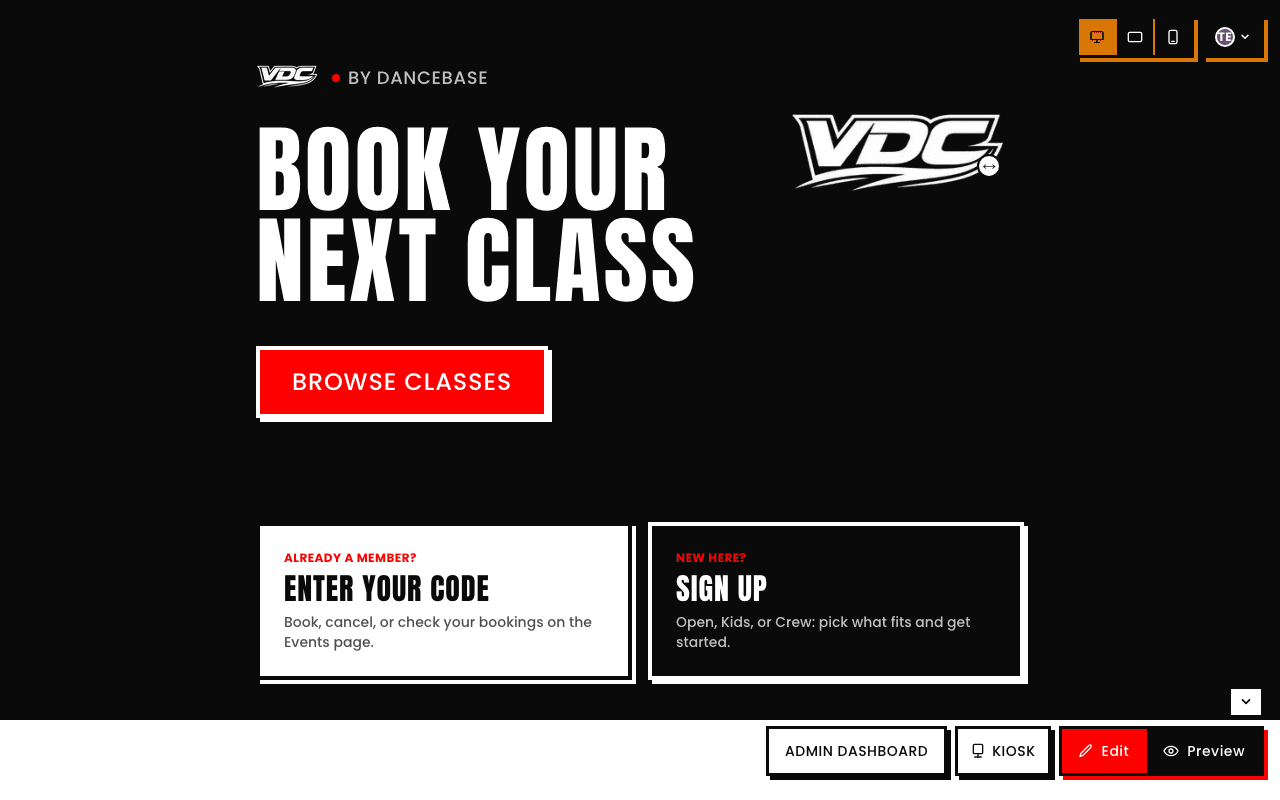
- Drag it to reposition, right there on the live page, no popover needed for a simple move.
- Click the pencil icon for its own panel: a Size slider (with an exact pixel value, aspect ratio locked) plus Save Size and Revert.
- Replace Image lets you choose a new file (PNG, JPG, WebP, or SVG, 5MB max) and upload it in place of the current one.
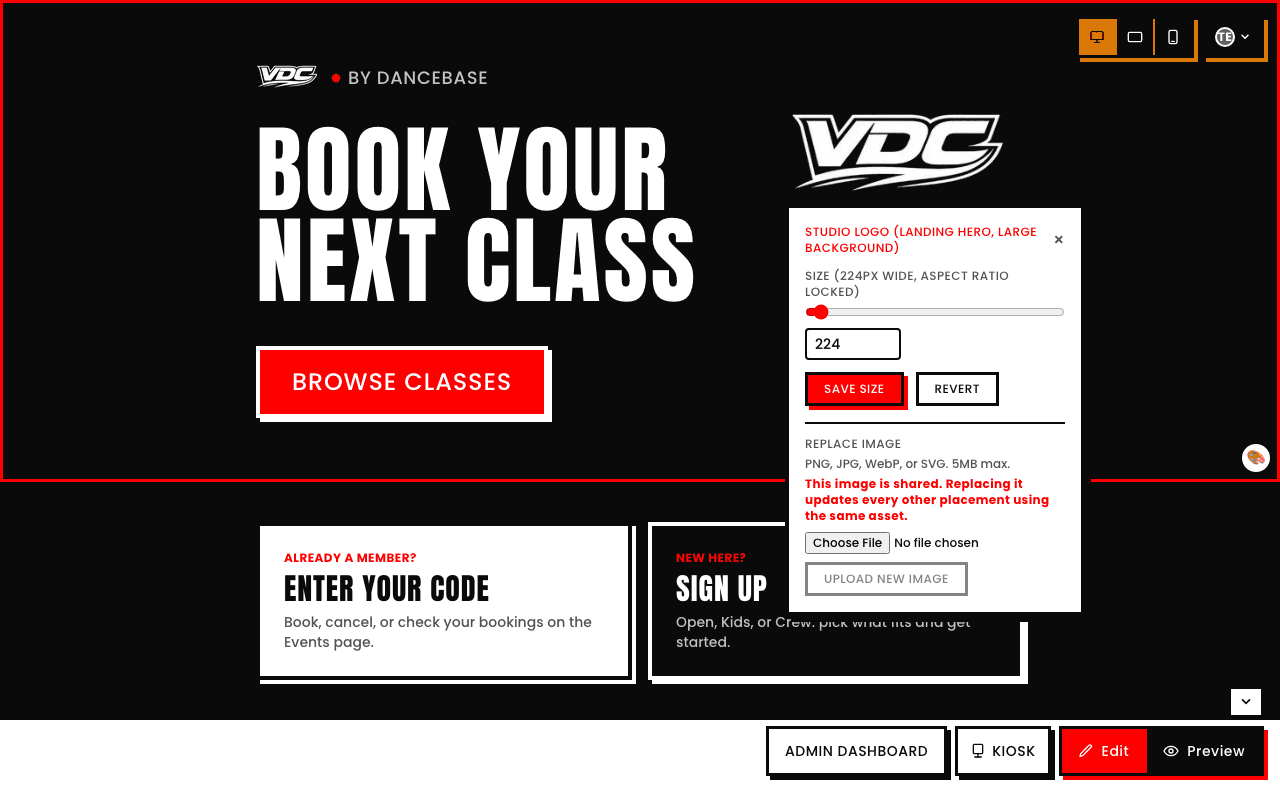
Replacing the file updates every placement that shares it, not just this one
The panel says it outright: "This image is shared. Replacing it updates every other placement using the same asset." If your logo appears in the hero, the header, and the kiosk screen, swapping the file here changes all of them at once, resizing or repositioning on this page only affects this one placement.