Admin tiers & adding staff
4 min read
Not everyone who helps run your studio needs, or should have, the keys to everything. A front-desk volunteer reviewing team applications doesn't need access to your payment settings, and a part-time instructor covering a class doesn't need the ability to delete another admin. Dancebase has three real admin tiers, each one a genuinely different slice of the admin panel, not a cosmetic label slapped on identical access underneath.
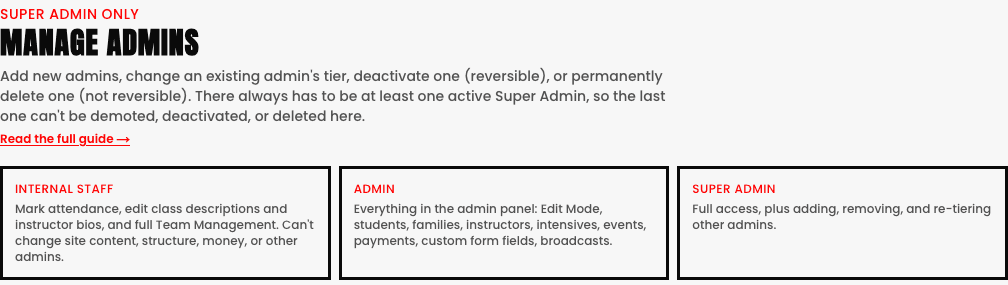
The three tiers, in detail
- Super Admin. Full access to everything, plus the one genuinely unique power: the only tier that can add, remove, or re-tier other admins. There always has to be at least one active Super Admin on any studio, so the very last remaining one can't be demoted, deactivated, or deleted, on purpose, to prevent a studio ever accidentally locking itself out entirely.
- Admin. Everything in the admin panel, Edit Mode, students, families, instructors, intensives, events, payments, custom form fields, broadcasts, all of it, with exactly one carve-out: can't manage other admins and can't touch studio-wide structural/pricing config. This is the right tier for a genuine co-manager or studio director who runs day-to-day operations alongside you.
- Internal Staff. Marks attendance, edits class descriptions and instructor bios, and has full, unrestricted Team Management (applications and rosters), everything a team coach needs, without payments or site-wide settings. This tier absorbed the old separate Crew Lead role entirely, an existing Crew Lead admin is now just an Internal Staff admin with the same real team access as before.
What the admin list itself looks like
Once you've added a few people, your Manage Admins list shows every admin's email alongside their current tier, with a dropdown right there to change it and clear Deactivate/Delete actions per person.
Super Admin
Full access, plus adding, removing, and re-tiering other admins.
Admin
Everything in the admin panel: Edit Mode, students, families, instructors, intensives, events, payments, custom form fields, broadcasts.
Internal Staff
Mark attendance, edit class descriptions and instructor bios, and full Team Management. Can't change site content, structure, money, or other admins.
Adding someone new
- 1Go to
Settings → Manage Admins(Super Admin tier only, this page itself is gated). - 2Tap
+ Add Admin. - 3Enter their email address and choose the tier that actually matches what they'll be doing.
- 4They sign in exactly the same way you did, Google, no password, at
/admin/login.

Deactivate vs. delete, a real, meaningful difference
See also