Scheduling a session
4 min read
A category on its own isn't bookable by anyone, it needs at least one real session on the calendar first. "+ Schedule session," from a category's own Sessions tab (under Manage Students → Sessions), opens a genuine 3-step guided form, not one long form.
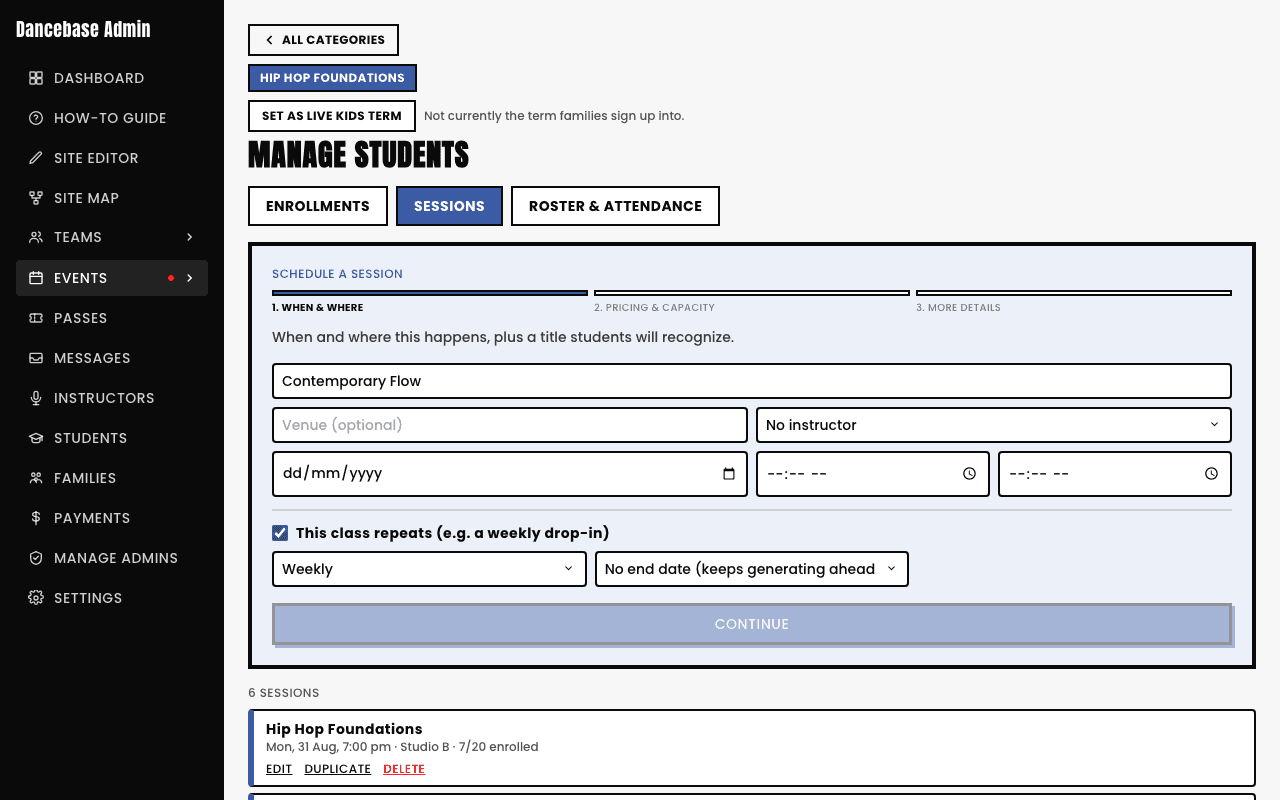
The three steps
- 1When & where. Title, venue, instructor, date and time, and a recurrence pattern if this isn't a one-off: Daily, Weekly, Fortnightly, Monthly, or Custom days of week. If it recurs, you also pick how it ends: No end date (keeps generating ahead automatically), a fixed number of occurrences, or until a specific date.
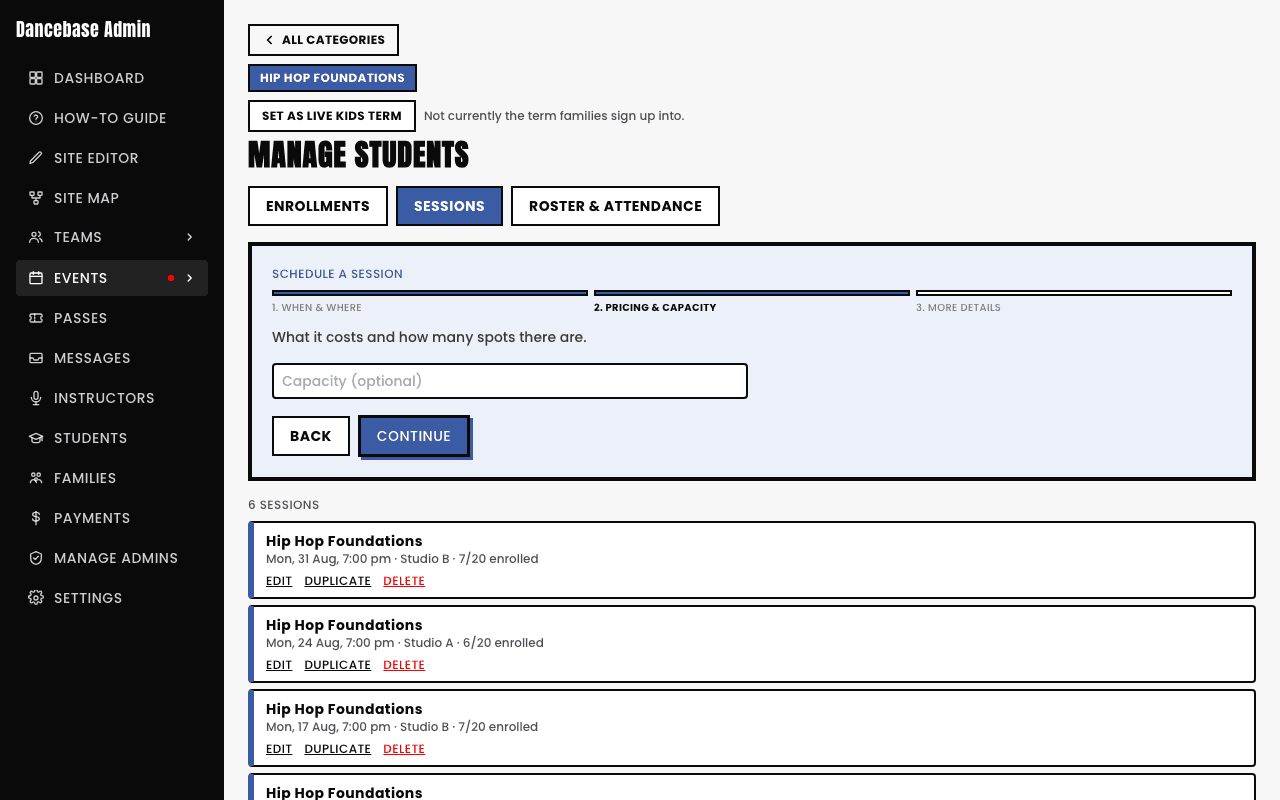
- 2Pricing & capacity. How many students this specific session can hold before it's genuinely full. For a Pay per class category, this step is also where you set that session's own price, since there's no category-level billing plan to fall back on.
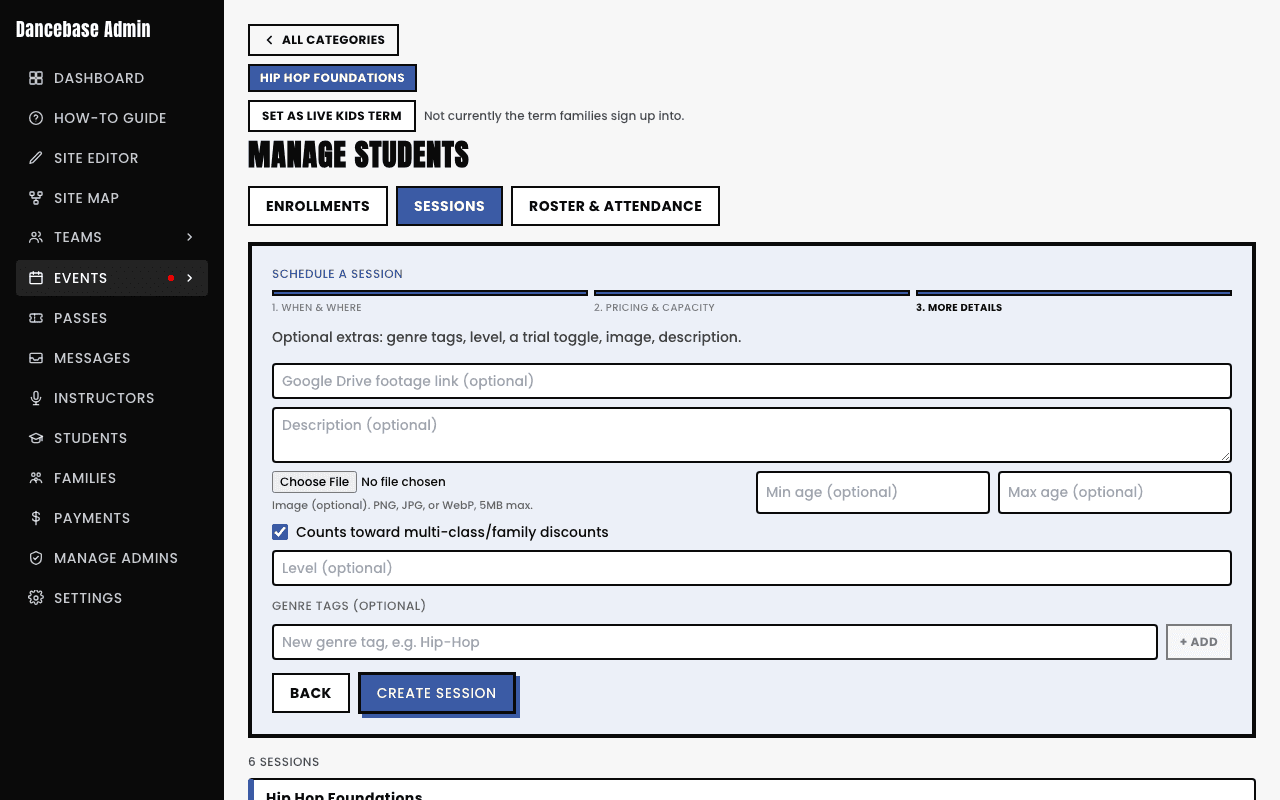
- 3More details. Genre tags, level, an age range, whether it counts toward multi-class/family discounts, an image, a description, and an optional Google Drive link if you keep session footage or notes somewhere your team already shares them.
Editing a session that's part of a recurring series
Save a change to a session that's part of a recurring series, whether you're editing from here or straight from the Calendar, same underlying form either way, and a real browser prompt appears asking you to type
this, future, or series. It's your browser's own native popup, not an in-app dialog, easy to miss if you're not expecting it. See Editing a recurring series without breaking it for exactly what each option does.