DancebaseCreate Your Studio

Editing your public site, no code involved

3 min read

Your public website (the one students actually visit) isn't a separate thing you edit somewhere else, it's the exact same page, with a toggle that switches it into an editable state. That's Edit Mode.

How it works

  1. 1
    Click Site Editor in the sidebar, this both takes you to your public homepage and turns Edit Mode on at the same time.
  2. 2
    Click directly on the text or image you want to change, right there on the real page, not a separate form.
  3. 3
    Make your change, it saves, and every visitor sees the update immediately, there's no separate "publish" step.

VDC's real live homepage in Edit Mode: a Desktop/iPad/Mobile viewport toggle and an admin identity badge top right, and ADMIN DASHBOARD/KIOSK quick-nav plus Edit/Preview toggle buttons bottom right
This is VDC's real, live homepage, not a mockup, with Edit Mode's own toolbar layered on top: viewport toggle top right, Edit/Preview toggle bottom right.

Edit Mode isn't limited to just the homepage

It works across the student-facing side of the app generally, the onboarding forms, the booking flow, the kiosk screen, anywhere Dancebase's own editable text and images appear. Toggling it on in one place keeps it on as you navigate to another.

Site Map: one list of every editable place

With Edit Mode covering so many different pages, remembering exactly where every editable thing lives is genuinely hard. The Site Map page (Super Admin-only) is a single index of every real editable surface, every team page, every onboarding form, all of it, one click each, and you land there with Edit Mode already switched on, no extra step. The page's own real description: "Every editable form, page, and team surface in one place. Most links open straight into Edit Mode, a per-team link opens that team's own management page instead, marked with a different icon."
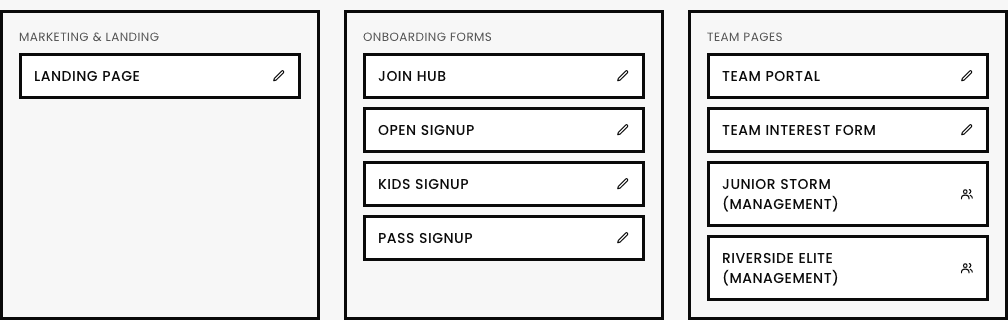
The Site Map page with three real sections: Marketing & Landing (Landing Page), Onboarding Forms (Join Hub, Open Signup, Kids Signup, Pass Signup), and Team Pages (Team Portal, Team Interest Form, plus a Management link per real team, Junior Storm and Riverside Elite)
Site Map, grouped by real section: Marketing & Landing, Onboarding Forms, Team Pages (each team gets its own Management-suffixed link, with a different icon), and more below the fold.
  • Use Site Editor for "I want to change something on the homepage right now."
  • Use Site Map for "I know I need to edit something, I just can't remember which page it's on."

Quick answers

Do I need to be the Super Admin to use Edit Mode at all?
No, Edit Mode itself is available more broadly, it's specifically the Site Map index page that's Super Admin-only.
Can I undo a text or image edit after saving it?
Each editable element's own panel has a Revert (or Reset, for the logo) option that restores its previous value, but there's no single studio-wide undo history across every edit you've ever made.