What lives on the Settings page
4 min read
Settings is Super Admin-only, and it's genuinely a long page, well more than a handful of separate panels stacked one after another, each controlling something distinct. It's worth knowing which panel does what before you go looking for a specific setting, rather than assuming it's just a short list.
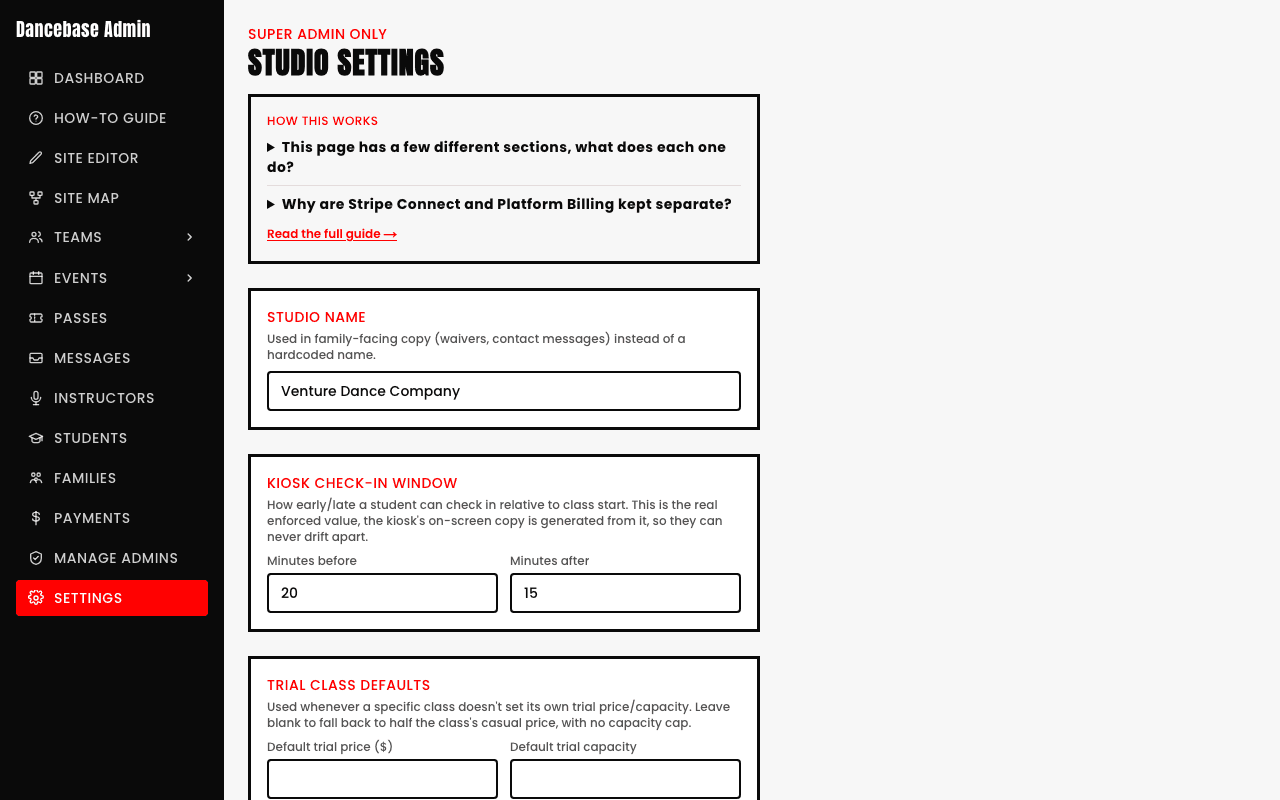
Config and defaults
- Studio Name. Used in family-facing copy (waivers, contact messages) instead of a hardcoded name.
- Tier Names. What each membership tier is actually called on your own site, emails, and checkout, edit any of them, leave one blank to keep the default.
- Kiosk Check-In Window. The real, enforced minutes-before/minutes-after values the kiosk's own on-screen copy is generated from.
- Trial Class Defaults. A fallback trial price and capacity used whenever a specific class doesn't set its own.
- Website Style and Studio Accent Color. Your live site's theme, covered fully in Branding.
- GST. A toggle to show GST as a real breakdown component on prices, off by default, an explicit open decision your studio confirms once it's actually GST-registered.
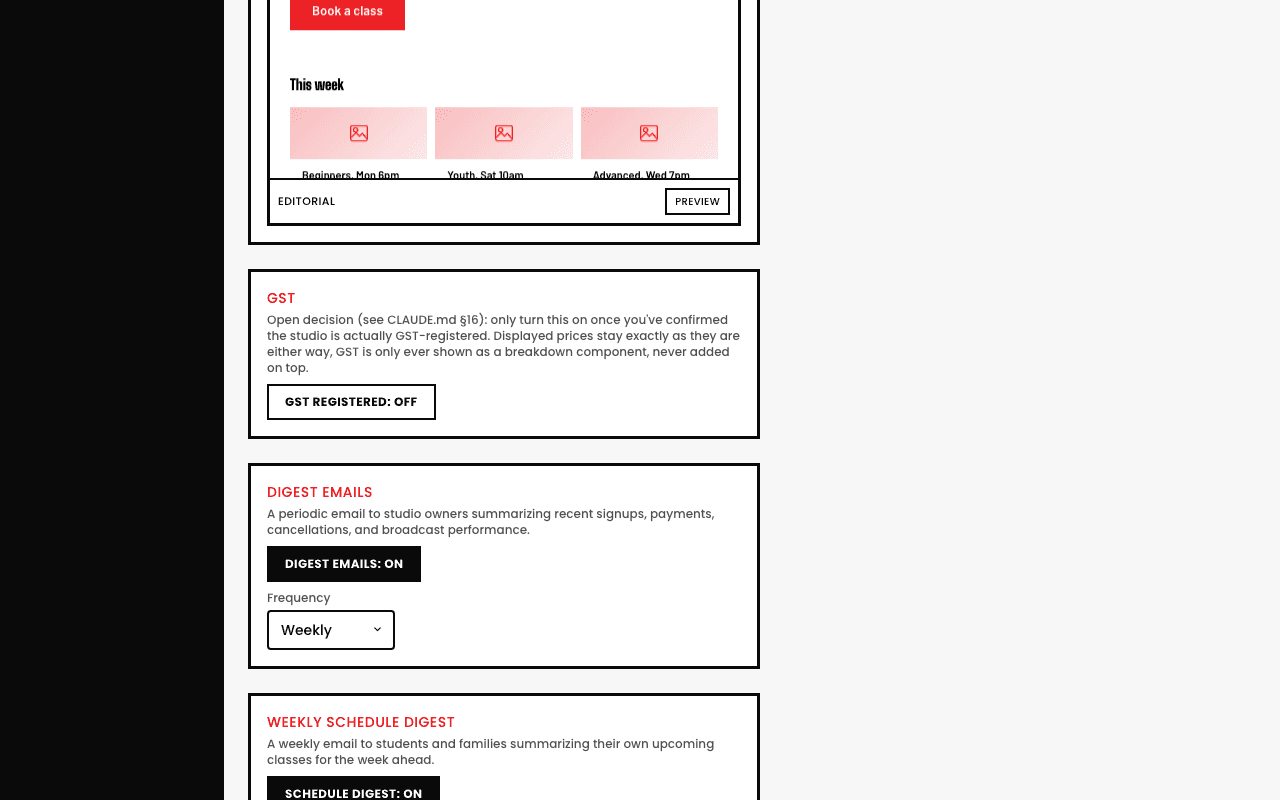
Digests and reminders
- Digest Emails. A periodic email to you, summarizing recent signups, payments, cancellations, and broadcast performance.
- Weekly Schedule Digest. A weekly email to students and families, summarizing their own upcoming classes, a completely different audience from Digest Emails above it.
- Birthday, Win-back, Pass Expiry, and Team Renewal reminders. Each has its own on/off toggle here, the actual template wording for each lives under Messages → Automations.
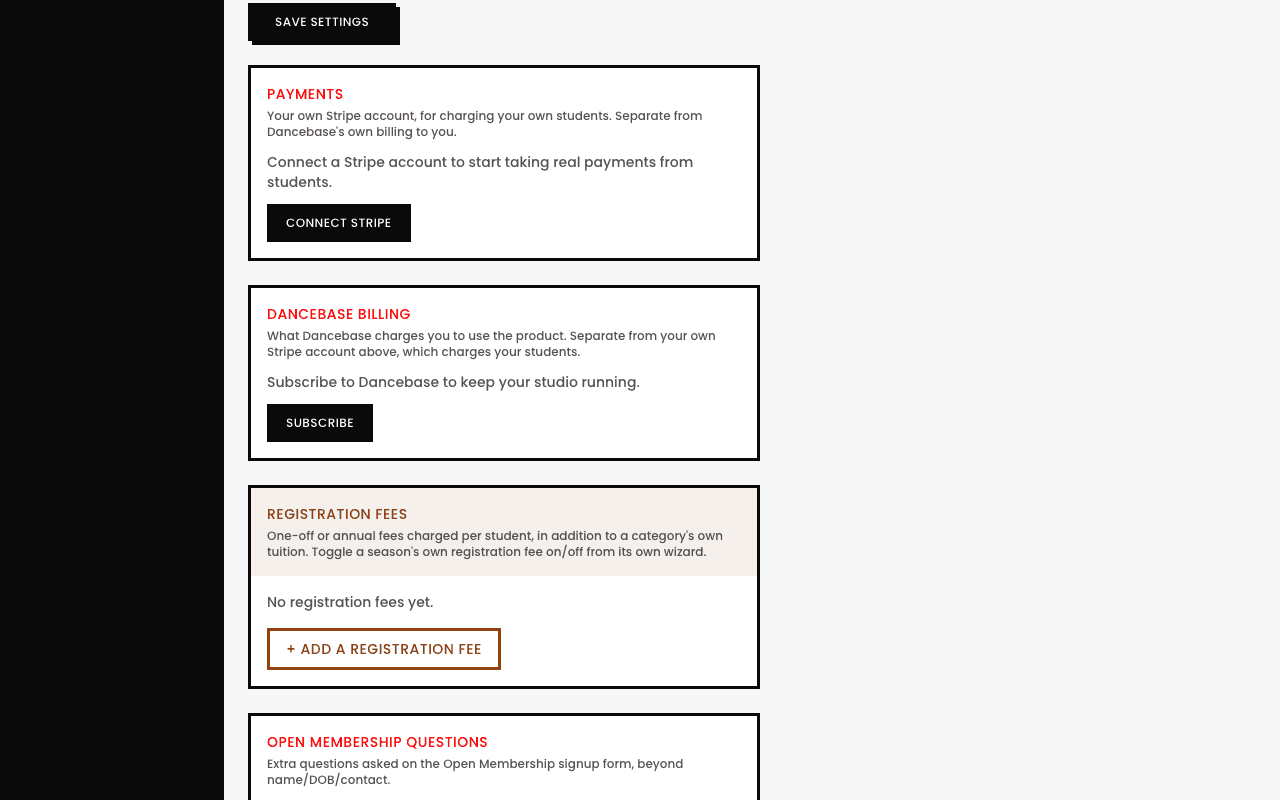
Money, and per-form questions
- Payments (Stripe Connect). Where your own studio connects its own Stripe account, this is what lets Dancebase actually charge and pay out your students' money to you.
- Dancebase Billing (Platform Billing). The opposite direction, what Dancebase itself charges your studio to use the product.
- Registration Fees. A one-time or annual fee charged per student, on top of a category's own tuition.
- Signup Questions panels. Custom form fields for your recurring-membership, pay-per-class, and family registration forms live here, see Custom Form Fields for the full picture, term-based programs and Team questions live on their own pages instead.
- Family waivers & policies. Near the bottom of the page, where you write the real text for Terms & Conditions and Privacy Policy (both required from day one, but empty until you write them), plus any custom waivers your studio wants.
Two billing directions, easy to mix up, worth keeping straight
Stripe Connect = money flowing from your students to you. Platform Billing = money flowing from you to Dancebase. They use completely separate Stripe setups behind the scenes on purpose, so a problem with one never affects the other.
Quick answers
Why is this whole page Super Admin-only?
Everything here touches money or studio-wide configuration, both genuinely higher-stakes than day-to-day admin work, so it's held to the strictest tier rather than opened up to Admin too.