Bulk importing students from a spreadsheet
6 min read
If you're moving off a spreadsheet, Import Students (in the sidebar, under Students, Super Admin only) is built for exactly that. Drop in an Excel or CSV file with your existing roster, and it walks you through matching your own columns to Dancebase, cleaning up anything messy, and reviewing every single row before a single record is actually saved.
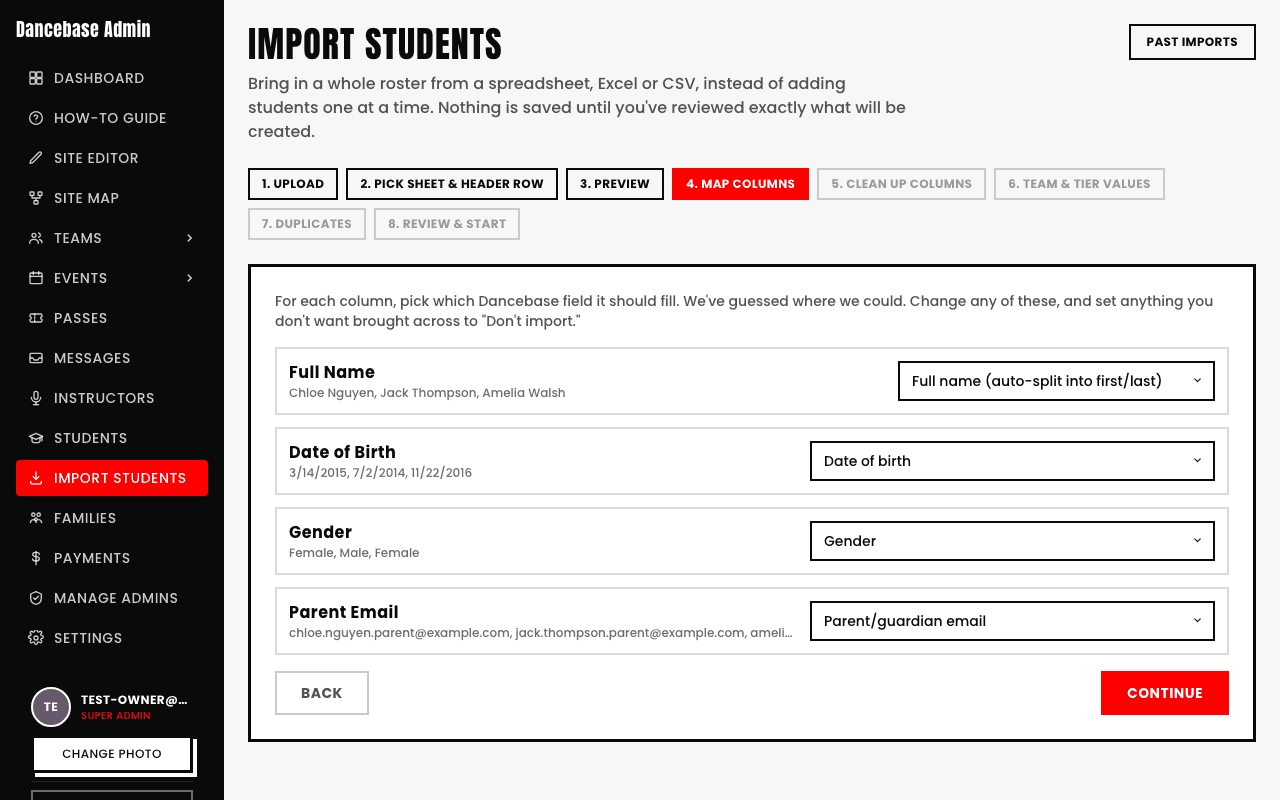
The wizard, step by step
- 1Upload. Drag in your file. If it has more than one tab, you pick which one. If there's a title row or a blank row above your real headers, you click the row that actually holds them, nothing has to start at row one.
- 2Preview. A quick look at the first few rows as read, so you can confirm it parsed correctly before doing anything else.
- 3Map columns. Each column gets matched to a Dancebase field automatically where the header's an obvious fit, always shown as a dropdown you can change. A single "Full Name" column can be pointed at "Full name (auto-split)" to split it into first and last on the spot. Separate "Area Code" and "Number" columns each get their own target and join into one phone number. Anything you don't want brought across gets set to "Don't import."
- 4Clean up columns. If your date of birth column has genuinely ambiguous dates like 03/04/2010, you're asked which format your sheet actually uses, so it resolves the same way every time rather than guessing.
- 5Team & tier values. Only appears if you've mapped a team or tier column. Real sheets are rarely consistent, one team might show up as "Megacrew" in some rows, "Mega" in others, "MC" in a few more. This step lists every distinct spelling actually found in your file and lets you point each one at the real team or tier, once, no guesswork on Dancebase's part.
- 6Duplicates. Choose how to match against students already in Dancebase (by email, or by name and date of birth if your sheet has no email column), and what happens on a match, skip it, update the existing record, or add it anyway. The same choice covers duplicates found within your own file.
Nothing is saved yet, even after all of that
Review, then import
Every row shows up exactly as it'll actually be saved, real values, not raw spreadsheet text, each one marked Ready, Needs a look, or Can't import yet. Click any row to fix a field right there, a missing last name, a wrong date, without going back to your spreadsheet and re-uploading.
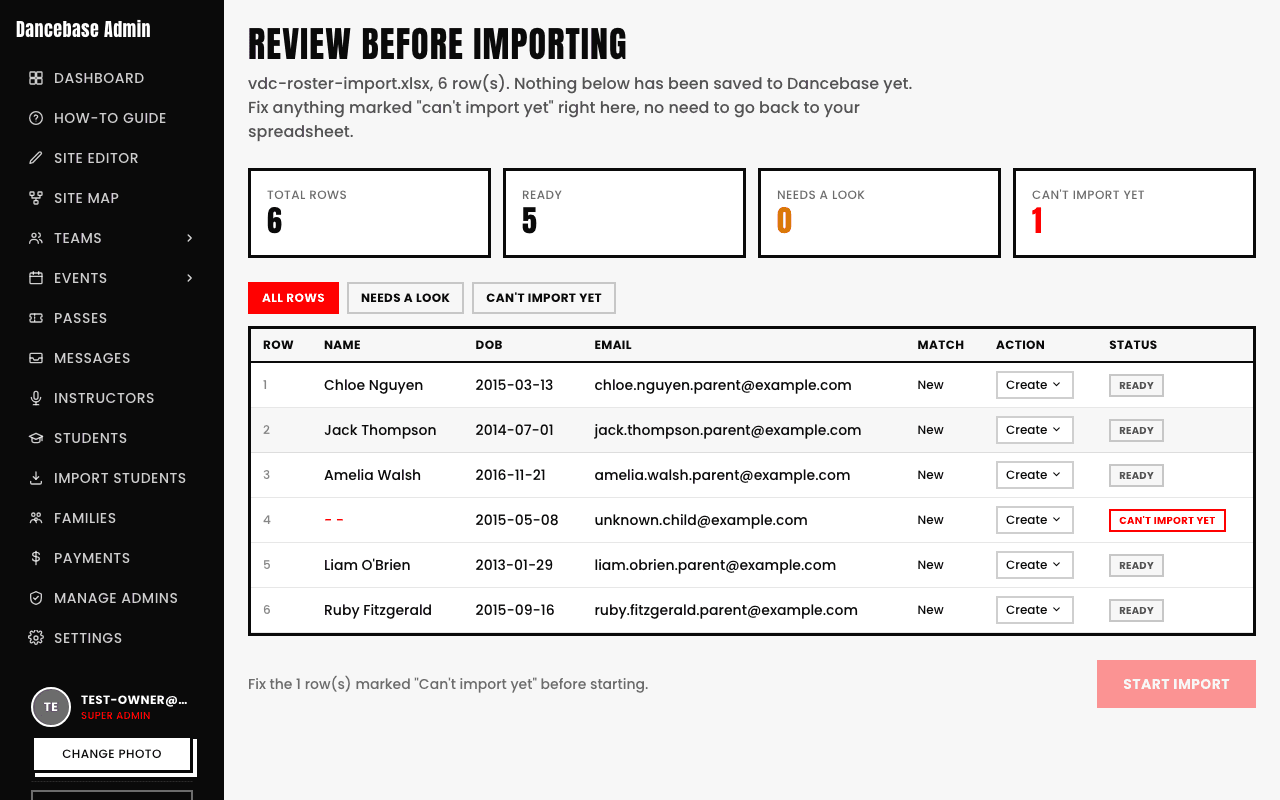
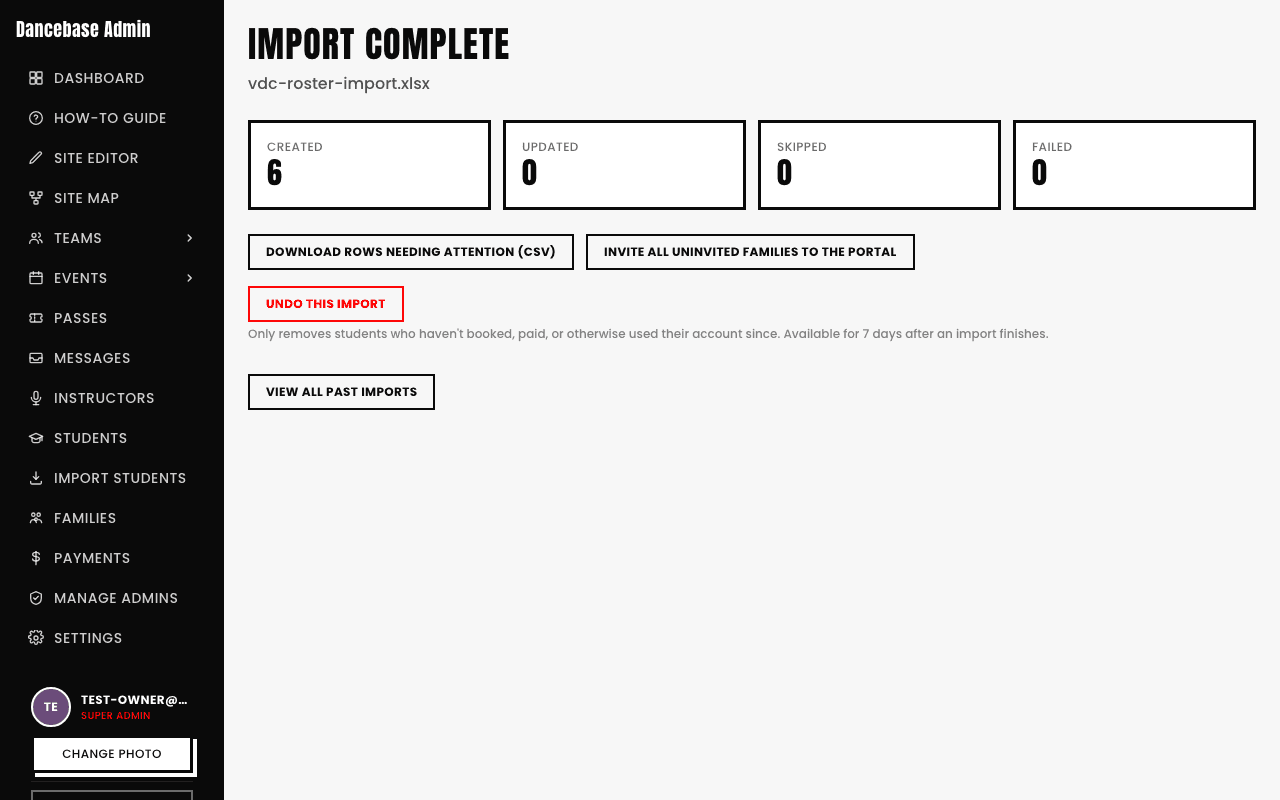
Once nothing's left marked "Can't import yet," hit Start import. A real progress bar tracks it, and it's safe to close the tab, reopening Past imports picks up exactly where it left off. Results shows how many were created, updated, skipped, and failed, with a downloadable CSV of anything needing attention and the reason why, so you can fix just those rows and re-upload only them, not the whole file again.
What it actually creates
- A real student record for every new row, and the family it belongs to (matched to an existing family by email first, so siblings sharing a parent's email correctly land under one household, not several).
- Real team membership, if you mapped one, the exact same no-billing roster addition an admin's own "grant team access" action already does.
- A tier tag, if you mapped one, an informational label on the student's record. Only ever set on a genuinely new student, never overwritten onto a returning one, so re-importing this term's sheet can't accidentally wipe a tier they already hold.
It never touches real class enrollment or billing
Undo
Undo this import, on the Results page, is available for 7 days after an import finishes. It only ever reverses students the import itself created, never one it updated, and only if that student hasn't booked a class, made a payment, or otherwise started using their account since. Anyone who has is left completely alone, and you'll see exactly how many couldn't be undone and why.
Saving your mapping for next time
On the last screen before Review, tick Save this column mapping and give it a name. Next term, pick it up from the Upload screen instead of mapping every column again from scratch, one click and you're straight into Review.
Quick answers