Kiosk check-in, from setup to first tap
4 min read
Every studio that's ever run a class off a paper attendance sheet knows exactly how this goes: the sheet gets left in the office, someone forgets to bring a pen, a name gets spelled wrong and now there are two entries for the same kid, and by the end of term nobody can say with real confidence who actually showed up to what. Kiosk check-in exists to make all of that simply not a problem anymore.
It's mandatory across every tier your studio runs, memberships, casual drop-ins, teams, all of it funnels through the exact same tablet by the door. There's deliberately no opt-out and no "present by default" setting anywhere, a student is only ever marked present because they genuinely, physically tapped in themselves.
Setting it up, the first time
- 1Open
yourstudio.dancebase.com.au/kioskin a browser on whichever tablet you're dedicating to this. - 2Put that browser into full-screen kiosk mode, most tablets have a built-in "guided access" or kiosk-lock feature made for exactly this kind of single-purpose use.
- 3Prop it up somewhere genuinely visible at your front desk or right by the door, plugged in, and leave it running.
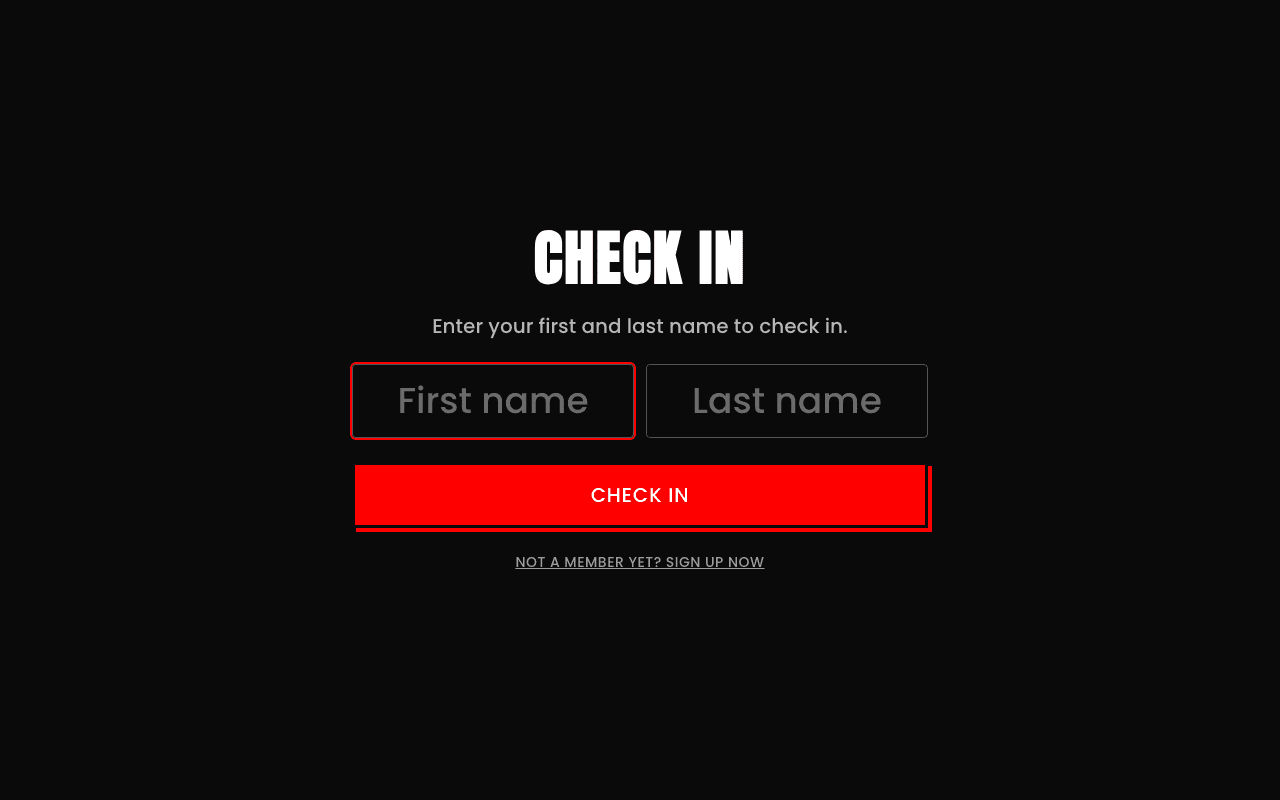
Name, not a login
What actually happens when a student taps in
They type their first and last name and tap Check In. Behind that one tap, Dancebase looks for their booking against whichever class is running right now, at this exact moment, and marks them present. This works reliably and unambiguously specifically because of the one-class-per-slot rule covered in Scheduling classes, there's never more than one possible booking to match a name against at any given time.
Every state a student might actually see
- Success. A clear, immediate confirmation the moment check-in registers correctly.
- Already checked in. Tapping in twice never double-marks anything or throws a confusing error, it politely confirms they're already checked in and shows the original time they arrived.
- No booking found. The kiosk says so plainly rather than silently failing or guessing, genuinely worth checking they're actually booked into today's specific session before assuming something's broken.
- Nothing running right now. If no class is currently in its check-in window at all, the kiosk tells them that too, rather than incorrectly matching them to the wrong class just to show *something*.

The check-in window itself
Team practice sessions use this exact same screen, with zero separate "team mode." A team member taps in precisely the same way a regular student does, and that single tap is what actually drives every bit of Team's attendance and strike tracking underneath.