Writing your own waivers & policies
3 min read
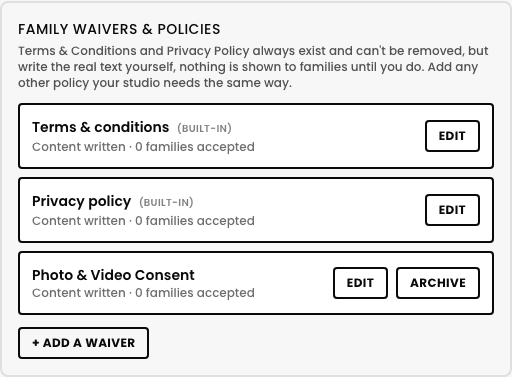
Every studio starts with two waivers that always exist and can't be removed, Terms & Conditions and Privacy Policy. They're required from day one, but they ship with genuinely no content, nothing shows to a family until you actually write the real text yourself.
Where you write it
- 1Open Settings (Super Admin-only) and scroll down to Family waivers & policies, near the bottom of the page.
- 2Tap Edit on Terms & Conditions or Privacy Policy.
- 3Fill in a short description (shown before a family opens the full text) and the full policy text itself, in a real rich-text editor, bold, links, and lists all work.
- 4Tap Save. It's live for every family immediately.
Terms & Conditions and Privacy Policy can't be removed, only written
Adding your own, beyond the built-in two
Tap + Add a waiver to create a genuinely new one, e.g. a Photo & Video Consent policy, a Code of Conduct, anything your studio actually needs families to read and agree to. Same shape as the built-ins: a title, a short description, and full rich text. There's no cap on how many you can add.
- Every active waiver is required, there's no way to mark one optional, if it's live, every family needs to accept it.
- A custom waiver can be archived later (soft-removed, not deleted), archiving stops requiring new acceptance without erasing anyone's existing acceptance history.
- Built-in waivers (Terms & Conditions, Privacy Policy) can't be archived, ever, only edited.
What a family actually sees
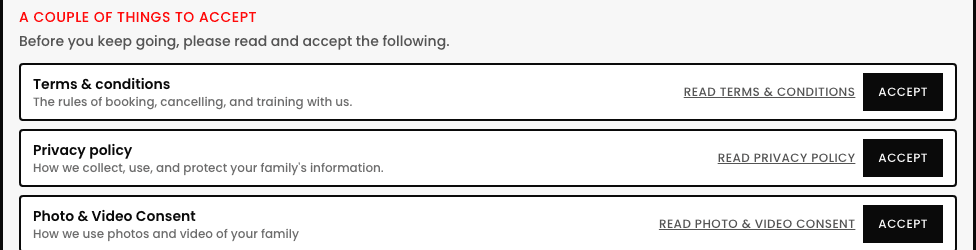
The moment a family logs into their portal with anything still pending, a card titled "One thing to accept" (or "A couple of things to accept" for more than one) appears right at the top, above everything else on their dashboard. It's never a blocking gate, a family can still book and use the rest of the portal with it sitting there, it just stays visible until they've dealt with it.
Checking who's accepted what
The Settings panel itself shows a real, live count of how many families have accepted each waiver, but for a specific family's own breakdown, open that family and go to its Waivers & policies tab, per-waiver status, Accepted (with the real date) or Pending, read-only, the same page covered in the previous article.
Quick answers